Setting up your AI key
KnightLeap's in-app AI features run on your own provider key, the same bring-your-own-AI idea as the MCP server. Your account, your model, your cost. You add a key once under Settings → AI, and it's stored encrypted and never shown again. KnightLeap is designed to be flexible and lets you choose which AI provider you use — pick whichever you like below. That said, our recommendation is to use Anthropic's Claude.
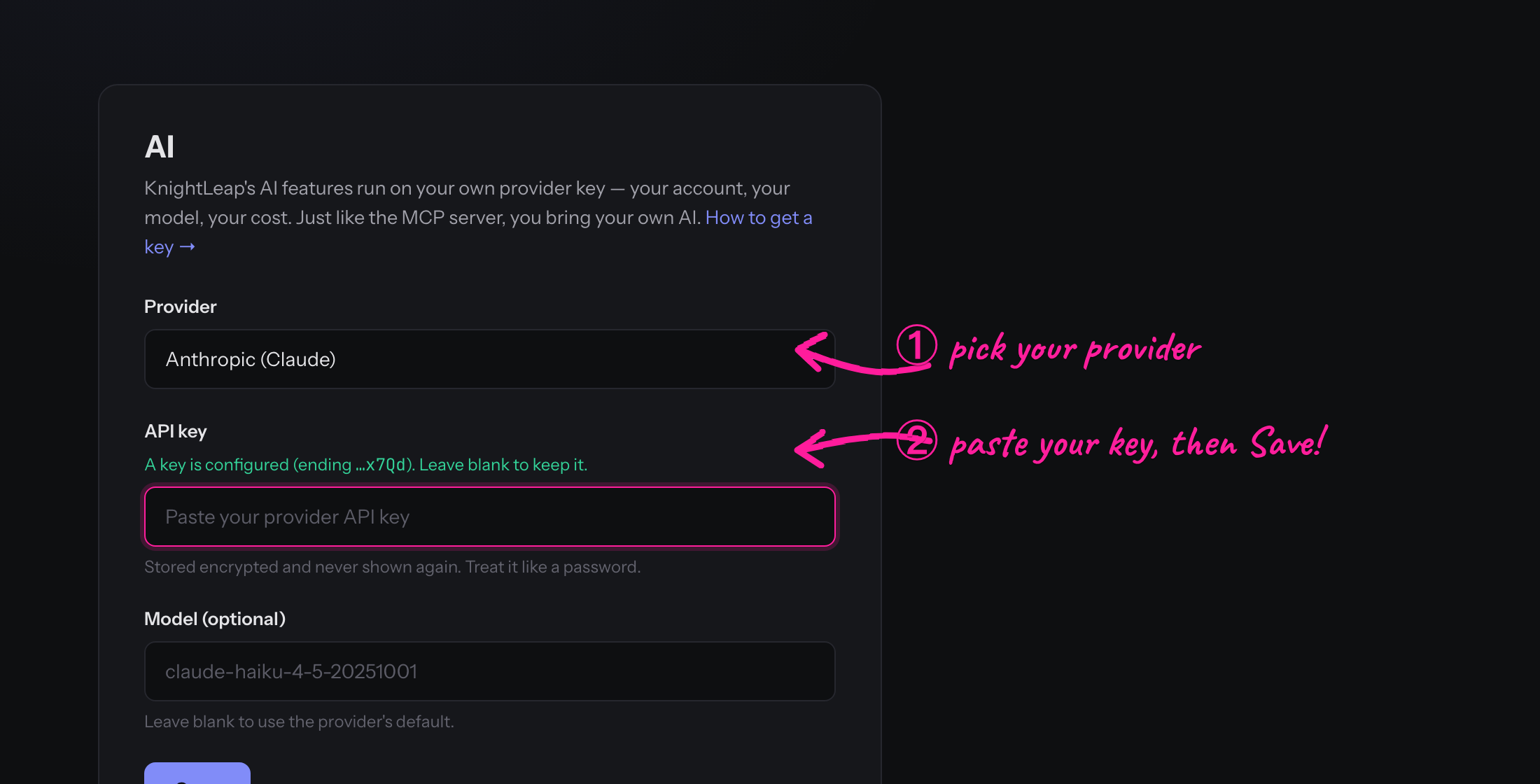
Anthropic (Claude)
- Go to console.anthropic.com and sign in (or create an account). This is the developer console, separate from your Claude.ai chat subscription.
- Open Plans & Billing and add a payment method or buy credits. API usage is pay-as-you-go and billed by Anthropic, not by KnightLeap. A check-in draft costs a fraction of a cent.
- Go to API keys → Create Key, give it a name (e.g. “KnightLeap”), and copy it. It starts with sk-ant- and is shown only once.
- In KnightLeap, open Settings → AI, choose Anthropic (Claude) as the provider, paste the key, and save.
OpenAI (ChatGPT)
- Go to platform.openai.com and sign in. This is the API platform, separate from a ChatGPT Plus subscription — they're billed independently.
- Open Settings → Billing and add a payment method or credits. API calls are pay-as-you-go, billed by OpenAI.
- Go to API keys → Create new secret key, name it, and copy it. It starts with sk- and is shown only once.
- In KnightLeap, open Settings → AI, choose OpenAI as the provider, paste the key, and save.
Google (Gemini)
- Go to aistudio.google.com/apikey (Google AI Studio) and sign in with your Google account. This is Google's developer surface for the Gemini API, separate from the Gemini chat app.
- Click Create API key. A new key works on Google's free tier; for higher rate limits, enable billing on the linked Google Cloud project. API usage is billed by Google, not by KnightLeap.
- Copy the key — it starts with AIza and is shown only once.
- In KnightLeap, open Settings → AI, choose Google (Gemini) as the provider, paste the key, and save.
Is it safe to share your key?
A fair question for any third-party app — here's the honest picture. Your key is stored encrypted at rest and never shown again (only the last four characters, with a last used timestamp so you can spot anything you didn't trigger). You can revoke it any time from Settings → AI, and anything using it stops immediately. Practically, it's the same trust you already place in any server, CI pipeline, or hosting platform that holds a key in an environment variable — with better hygiene than a plaintext .env file.
For extra peace of mind — good practice with any third-party app — lock the key down:
- Use a dedicated key for KnightLeap, separate from the ones you use elsewhere, so you can revoke it in isolation.
- Set a monthly spend cap and tight rate limits on that key's workspace/project, so usage is bounded no matter what.
- Watch the usage in your provider's console — since the key is dedicated, anything you didn't initiate stands out immediately.
Good to know
- Stored encrypted. Your key is encrypted at rest and never rendered back — we show only the last four characters so you know which key is set. Treat it like a password.
- You're in control of cost. Usage is billed by your provider, on your account. Remove the key any time from Settings → AI to switch it off.
- Draft, never act. AI output is always a suggestion you edit before saving. For example, a check-in draft proposes a confidence score — but you set it.